
Download Parallels Transporter – Fast, Secure Data Transfer Between Windows and Mac
Overview
Parallels Transporter is a dedicated migration tool that simplifies the often‑painful process of moving personal data, application settings, and media files from a Windows PC to a Mac. Designed by the engineers behind the popular Parallels Desktop virtualization suite, this utility removes the guesswork from cross‑platform transitions. Whether you are switching to macOS for the first time or need to keep a mixed‑environment workflow, Parallels Transporter offers a streamlined, secure, and automated solution.
The application supports a variety of transfer methods—including direct network sharing, external drives, and even cloud‑based pathways—so you can choose the most convenient route for your specific setup. Its intuitive interface guides you through each step, prompting you to select the data categories you want to move (documents, photos, email archives, program preferences, etc.) and then handling the heavy lifting behind the scenes. By preserving file permissions and application configurations, Parallels Transporter ensures that you can pick up right where you left off on your new Mac, without having to reinstall or re‑configure everything manually.
The tool is free to download, regularly updated for security and compatibility, and works on both Intel‑based and Apple‑silicon Macs, making it a versatile asset for any user planning a platform switch.
Key Features
- Multiple Transfer Options: Choose between local‑network migration, USB/Thunderbolt external drives, or cloud storage to suit your bandwidth and hardware preferences.
- Selective Data Migration: Pick specific file types, folders, or application data to move, allowing you to leave behind unwanted clutter.
- Preserves Application Settings: Retains program preferences and configuration files, so compatible macOS apps launch with the same settings they had on Windows.
- Secure Transfer Protocols: Utilizes encrypted connections (TLS/SSL) when moving data over a network, safeguarding sensitive information.
- Cross‑Architecture Compatibility: Fully supports Intel‑based Macs and Apple‑silicon (M1/M2) devices, automatically adjusting migration pathways.
- Automatic Driver Detection: Detects Windows drivers and suggests macOS equivalents or alternative solutions, minimizing post‑migration issues.
- Progress Monitoring Dashboard: Real‑time transfer statistics, speed indicators, and error logs keep you informed throughout the process.
- Regular Updates & Free License: Receives frequent security patches and feature enhancements at no cost.
These features collectively make Parallels Transporter a robust bridge between two fundamentally different operating systems. The selective migration capability is especially valuable for power users who maintain large media libraries but only need a subset of their Windows applications on macOS. By handling driver detection automatically, the tool reduces the technical overhead that typically accompanies cross‑platform moves, ensuring that peripherals such as printers or scanners remain functional after migration. The built‑in progress dashboard not only offers transparency but also allows you to pause or resume transfers, which is handy for those working in environments with fluctuating network performance. Overall, the feature set balances simplicity for casual users with depth for IT professionals seeking granular control over the migration process.
Installation & Usage Guide
Step‑by‑Step Installation
1. Download the Installer: Visit the official Parallels website and click the “Download Parallels Transporter” button. The file is a small .dmg for macOS and a .exe for Windows (used only for the source side of the migration).
2.
Run the Installer: On a Mac, double‑click the .dmg, drag the Parallels Transporter icon into the Applications folder, and confirm any Gatekeeper prompts. On Windows, run the .exe and follow the wizard to install the companion service that will expose your data for transfer.
3. Launch the Application: Open Parallels Transporter from the Applications folder.
The first launch may request permission to access your Documents, Photos, and Network; grant these permissions to ensure a smooth migration.
4. Check for Updates: Navigate to the “Preferences” menu and click “Check for Updates.” Keeping the software current guarantees compatibility with the latest macOS releases and security patches.
Executing a Migration
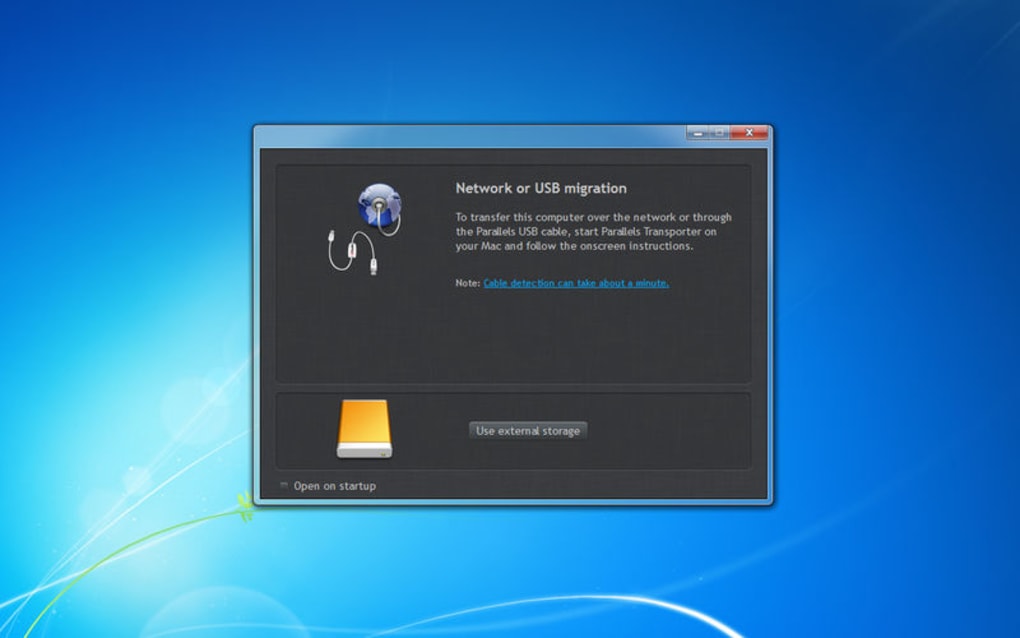
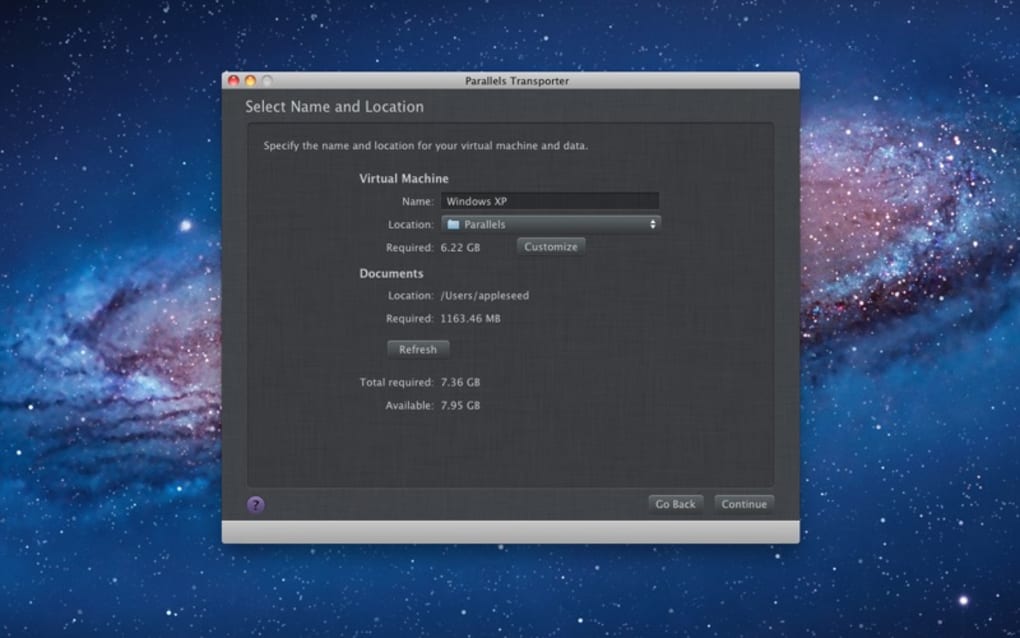
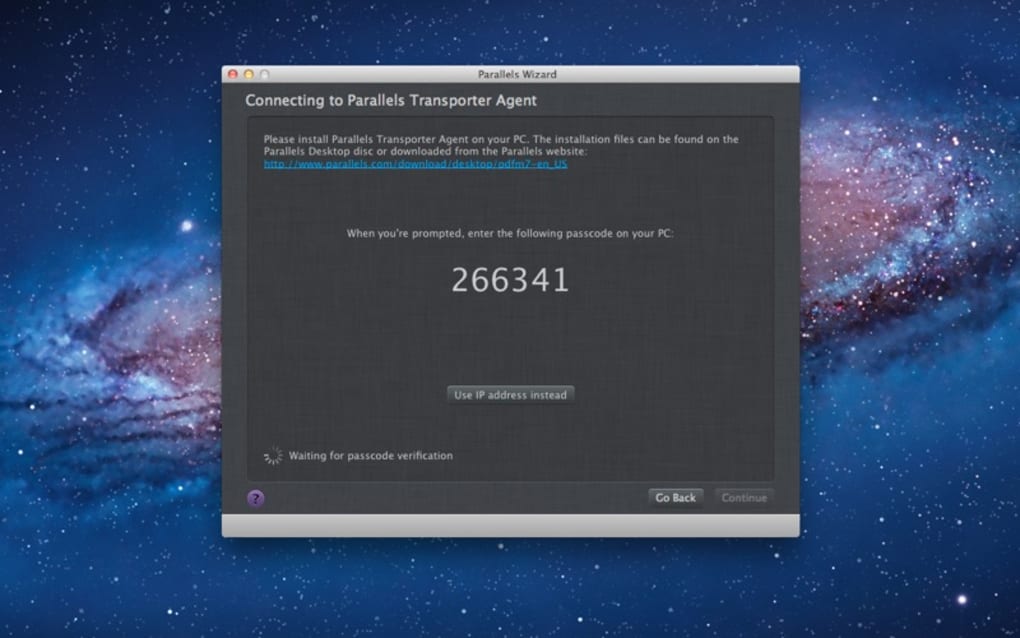
Once installed on both machines, the migration process follows a logical flow. Begin on the Mac side, where you’ll select “Start New Transfer.” The app will automatically scan the local network for a Windows device running the Parallels Transporter service. If the devices are on different subnets, you can manually enter the Windows machine’s IP address.
After the connection is established, you’ll be presented with a categorised list of data groups—Documents, Pictures, Emails, Application Data, etc. Use the checkboxes to select the items you wish to transfer. For large libraries, you can enable the “Compress data before transfer” option, which reduces network load at the cost of a brief pre‑compression step.
Click “Begin Transfer,” and the dashboard will show real‑time progress, estimated completion time, and any warnings (e.g., files that could not be mapped to macOS equivalents). When the process finishes, the app offers a summary report and prompts you to launch any newly transferred applications for final configuration checks.
The entire workflow is designed to be intuitive even for users unfamiliar with networking concepts. Parallels Transporter handles all low‑level tasks—authentication, data encryption, and file system translation—while you remain focused on selecting what matters most. For advanced users, the “Advanced Settings” panel provides options to limit bandwidth usage, schedule transfers for off‑peak hours, and define custom exclusion patterns using regular expressions. After a successful migration, it is recommended to run the built‑in “Verification” tool, which scans the transferred files for integrity and flags any potential mismatches.
Compatibility, Pros & Cons
Supported Operating Systems
Parallels Transporter is engineered to work across the most common desktop operating systems. On the macOS side, it supports macOS 11 (Big Sur) through macOS 14 (Sonoma), covering both Intel‑based and Apple‑silicon (M1, M2, and later) hardware. The Windows companion runs on Windows 10 (64‑bit) and Windows 11, requiring only the .NET Framework 4.7 or later, which is pre‑installed on modern Windows editions. For the transfer channel, the application relies on standard TCP/IP networking, so any Wi‑Fi, Ethernet, or Thunderbolt network adapter that can obtain an IP address is sufficient. Users can also opt for external USB‑C or Thunderbolt drives as a physical medium, which is especially handy in environments with restricted network policies.
Pros
- Free to download and use, with no hidden subscription fees.
- Multiple transfer methods provide flexibility for various network conditions.
- Selective migration saves time and reduces storage bloat on the target Mac.
- Secure, encrypted transfers protect sensitive personal and business data.
- Preserves application settings, minimizing post‑migration re‑configuration.
- Fully compatible with the latest macOS and Windows releases, including Apple‑silicon.
- Regular updates ensure ongoing security and feature enhancements.
Cons
- Requires installation of a companion service on the Windows machine, which may be blocked by strict corporate IT policies.
- Large migrations over Wi‑Fi can be slower than using a wired Ethernet or external drive.
- While most common apps are supported, some niche Windows‑only programs may not have direct macOS equivalents, requiring manual re‑installation.
- No built‑in cloud backup; users must rely on third‑party services if they want off‑site storage.
Overall Rating: 4.5 / 5
Frequently Asked Questions
Can I transfer files from a Windows PC to a Mac without a network connection?
Yes. Parallels Transporter allows you to use an external USB‑C, Thunderbolt, or even a standard USB flash drive as a physical transfer medium. Simply select “Transfer via External Drive” during the setup wizard, copy the data on the Windows side, then connect the drive to the Mac to complete the migration.
Is the data encrypted during a network transfer?
All network transfers are protected with TLS 1.2 encryption. This ensures that files, credentials, and application settings remain private and cannot be intercepted by unauthorized parties on the same network.
Do I need to purchase a license for Parallels Transporter?
No. Parallels Transporter is offered as a free utility. You can download, install, and use it without any recurring fees. Optional paid upgrades (such as priority support) are available but not required for core functionality.
Can the tool migrate Microsoft Outlook data to Apple Mail?
Parallels Transporter can export Outlook PST files and import them into Apple Mail. The process preserves folder hierarchy and message metadata, though you may need to re‑configure account settings manually after the transfer.
What happens if the transfer is interrupted?
The application automatically creates a checkpoint file. When you restart Parallels Transporter, it detects the incomplete session and offers to resume from the last successful block, minimizing data duplication and time loss.
Conclusion & Call to Action
Parallels Transporter stands out as a reliable, free, and user‑friendly solution for anyone looking to move their digital life from Windows to macOS. Its blend of multiple transfer pathways, selective data migration, and secure encryption addresses the most common pain points that arise during a platform switch. While a few minor limitations exist—such as reliance on a Windows companion service and occasional slower Wi‑Fi performance—the overall value proposition far outweighs these concerns. Whether you are a creative professional bringing a massive photo library to a new Mac, a small business migrating employee workstations, or simply a home user curious about macOS, Parallels Transporter makes the journey painless and efficient.
Ready to experience a seamless migration? Download Parallels Transporter now, follow the quick installation steps, and start transferring your files securely today. Take advantage of the free, regularly updated tool and enjoy a hassle‑free transition to your new Mac environment.







